IPv4 Access for DS-Lite with HAProxy and socat on a VPS
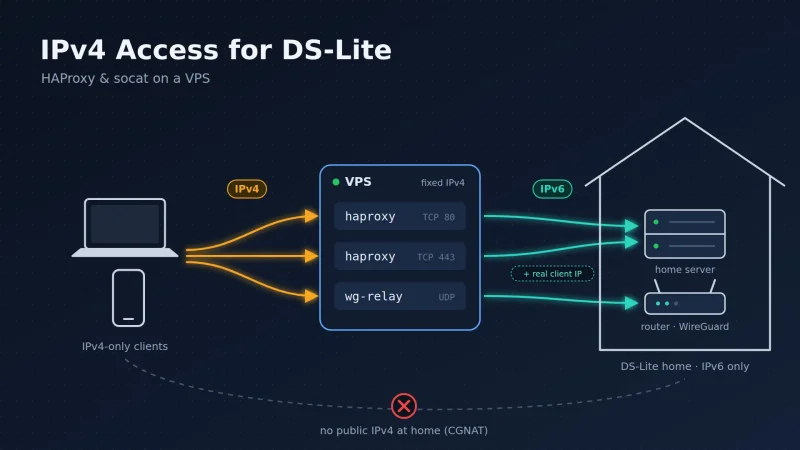
This guide describes how a home network behind a DS-Lite DSL connection is made reachable via IPv4. It uses a small VPS with a fixed public IPv4 address, HAProxy for the web services and a socat relay for WireGuard:
| Service | Protocol | Purpose |
|---|---|---|
haproxy | TCP 80, 443 | Forwards HTTP/HTTPS from IPv4 to the home server via IPv6 and passes on the real client IP (PROXY protocol) |
wg-relay | UDP 51820 | Forwards WireGuard from IPv4 to the FRITZ!Box via IPv6 |
Compared to the pure socat variant (IPv4 Access for DS-Lite Connection with socat Relays on a VPS), the home server now sees the real IP address of IPv4 visitors instead of the VPS’s address. Logs, fail2ban and IP-based rules work for all visitors.
The Problem
With DS-Lite (Dual-Stack Lite), the provider gives the connection a public IPv6 prefix only. IPv4 traffic is tunneled to the provider and leaves the internet through a carrier-grade NAT (AFTR) that many customers share. As a result:
- No incoming IPv4 connections are possible. There is no public IPv4 address of your own, so IPv4 port forwarding on the FRITZ!Box does nothing.
- Incoming connections only work via IPv6. Clients that only have IPv4 (many hotel and café Wi-Fi networks, trains, corporate guest networks, some mobile networks) cannot reach the home network at all.
- The IPv6 prefix changes every night (here: around 3 a.m.), so all public IPv6 addresses in the home network change as well.
The Solution
A VPS has what the home connection lacks: a fixed public IPv4 address. It also has IPv6. HAProxy and socat on the VPS accept connections on IPv4 and open a matching connection via IPv6 to the home network:
flowchart LR
    C1[Web client<br/>IPv4 only] -->|TCP 80/443| H
    C2[iPhone WireGuard<br/>any network] -->|UDP 51820| W
    subgraph V[VPS · fixed public IPv4]
        H[HAProxy<br/>TCP 80/443]
        W[socat wg-relay<br/>UDP 51820]
    end
    H -->|TCP via IPv6<br/>+ PROXY header<br/>ddns-server6.example.com| S[Home server<br/>Caddy]
    W -->|UDP via IPv6<br/>xxxxxx.myfritz.net:51871| F[FRITZ!Box<br/>WireGuard server]
C3[Web client<br/>with IPv6] -->|TCP 80/443 directly| S- Clients with IPv6 reach the home server directly via its AAAA record.
- Clients with IPv4 only reach the VPS via the A record. HAProxy forwards the connection via IPv6 and puts a PROXY protocol header with the client’s real IP address in front of it. Caddy reads this header.
- The iPhone always connects to the VPS. socat forwards the WireGuard packets to the FRITZ!Box via IPv6. The WireGuard encryption stays end-to-end between iPhone and FRITZ!Box.
- Why not iptables DNAT? Linux cannot NAT from IPv4 to IPv6 (no NAT46) in the kernel. A userspace proxy such as HAProxy or socat terminates the IPv4 connection and opens a new IPv6 connection, so the address family no longer matters.
- Why still socat for WireGuard? HAProxy does not forward UDP. socat does.
Prerequisites
- VPS running Debian/Ubuntu with a fixed public IPv4 and working IPv6, e.g. a Netcup VPS pico. Root or sudo access.
- FRITZ!Box with FRITZ!OS 7.50 or later (tested with a FRITZ!Box 7590 / FRITZ!OS 8.25), MyFRITZ! enabled.
- Home server running the web services with Caddy 2.7 or later as reverse proxy and a stable IPv6 interface ID (EUI-64 or a fixed token, no privacy/temporary address).
- A DynDNS client on the home server that keeps the AAAA records of its hostnames up to date.
Part 1: DNS Records
Visitors use one hostname, here ddns-server.example.com. HAProxy uses a second hostname with only an AAAA record, here ddns-server6.example.com:
| Hostname | Record | Value | Maintained by |
|---|---|---|---|
ddns-server.example.com | A | Public IPv4 of the VPS | Static, entered once at the DNS provider |
ddns-server.example.com | AAAA | Public IPv6 of the home server | DynDNS client on the home server |
Important: the AAAA records must point to the home server’s own IPv6 address, not to the FRITZ!Box. IPv6 has no port forwarding. The FRITZ!Box only opens its firewall for the server’s address.
Use a short TTL for the AAAA records (60–300 s), so that clients and the VPS pick up the new address quickly after the nightly prefix change.
The WireGuard relay uses the MyFRITZ! address of the FRITZ!Box itself, e.g. xxxxxx.myfritz.net. The FRITZ!Box keeps it up to date.
Check on the VPS:
dig +short A    ddns-server.example.com    # -> VPS IPv4
dig +short AAAA ddns-server.example.com    # -> IPv6 of the home server
dig +short AAAA xxxxxx.myfritz.net # -> IPv6 of the FRITZ!BoxMyFRITZ! names may also return an A record pointing to the provider’s shared DS-Lite IPv4 address. This is harmless for the WireGuard relay because it uses UDP6: and therefore only queries the AAAA record.
Part 2: FRITZ!Box Settings
- IPv6 port forwarding to the home server: Internet → Permit Access → Port Forwarding → select the home server → allow 80 and 443 with IPv6 enabled. IPv4 forwarding is pointless with DS-Lite. Check that the IPv6 interface ID shown there matches the server’s stable address.
- WireGuard connection for e.g. the iPhone: Internet → Permit Access → VPN (WireGuard) → Add VPN Connection → single device. Note the WireGuard port from the generated configuration (here
51871).
Part 3: Upgrade Caddy to 2.7 or Later (Home Server)
Caddy supports the PROXY protocol natively since version 2.7. Debian 12 and Ubuntu 24.04 ship 2.6.2, which is too old. Check:
caddy versionIf the version is older than 2.7, switch to the official Caddy repository.
1. Back up configuration and certificates:
sudo cp -a /etc/caddy /root/caddy-etc.bak
sudo cp -a /var/lib/caddy /root/caddy-data.bak
2. Add the official repository:
sudo apt install -y debian-keyring debian-archive-keyring apt-transport-https curl
curl -1sLf 'https://dl.cloudsmith.io/public/caddy/stable/gpg.key' | sudo gpg --dearmor -o /usr/share/keyrings/caddy-stable-archive-keyring.gpg
curl -1sLf 'https://dl.cloudsmith.io/public/caddy/stable/debian.deb.txt' | sudo tee /etc/apt/sources.list.d/caddy-stable.list
sudo chmod o+r /usr/share/keyrings/caddy-stable-archive-keyring.gpg /etc/apt/sources.list.d/caddy-stable.list
3. Pin the caddy package to this repository. This is required on Ubuntu with Ubuntu Pro/ESM: ESM sources have priority 510, the Caddy repository 500, so apt would otherwise keep the old ESM package.
sudo tee /etc/apt/preferences.d/caddy <<'EOF'
Package: caddy
Pin: origin dl.cloudsmith.io
Pin-Priority: 600
EOF
4. Install and check:
sudo apt update
apt-cache policy caddy          # Candidate: version from dl.cloudsmith.io
sudo apt install caddy
caddy version                   # 2.7 or later
caddy validate --config /etc/caddy/Caddyfile
The official package uses the same paths (/etc/caddy, /var/lib/caddy) and the same caddy user, so configuration and certificates are kept.
caddy validate may log server is listening only on the HTTP port, so no automatic HTTPS will be applied. This only means that the Caddyfile contains an explicit HTTP-only site block (e.g. :80 { … } or http://…). It is harmless if intentional.
Part 4: Enable the PROXY Protocol in Caddy (Home Server)
Find the VPS’s public IPv6 network. On the VPS:
curl -6 -s https://ifconfig.co # IPv6 the VPS uses for outgoing connectionsVPS providers usually assign a /64 network (e.g. 2a03:4000:xxxx:xxxx::/64). Trusting the whole /64 keeps working even if the VPS uses a different address from it.
Add the following to the global options block at the top of the Caddyfile (merge it if a global block { … } already exists):
{
	servers {
		listener_wrappers {
			proxy_protocol {
				allow 2a03:4000:xxxx:xxxx::/64
			}
			tls
		}
	}
}
Validate and reload:
caddy validate --config /etc/caddy/Caddyfile
sudo systemctl reload caddyallow: Only connections from the VPS network may carry a PROXY header. It only accepts IP ranges (CIDR), not hostnames.- Order:
proxy_protocolmust come beforetls, because the PROXY header arrives in plain text before the TLS handshake. - Other sources: Direct IPv6 visitors are not affected and cannot fake a client IP.
- Header optional for the VPS: For allowed sources the PROXY header is optional. Connections from the VPS without a header (e.g. from socat or HAProxy health checks) keep working. This allows a switch-over without downtime.
- Scope: The block applies to all Caddy servers, i.e. to port 80 and port 443.
If Caddy runs in Docker, make sure Caddy sees the VPS’s real IPv6 as the source address (e.g. network_mode: host). Otherwise Docker may replace the source address and the allow rule never matches.
Part 5: Install HAProxy and socat on the VPS
sudo apt install haproxy socat -y
haproxy -v
Make sure the ports are not in use by anything else:
sudo ss -tulpn | grep -E ':(80|443|51820)\b'Part 6: HTTP/HTTPS Forwarding with HAProxy
Replace /etc/haproxy/haproxy.cfg with the following configuration. The global section corresponds to the Debian/Ubuntu default. Recommendation is to keep the global section as is and only replace the remaining sections.
global
    log /dev/log local0
    log /dev/log local1 notice
    chroot /var/lib/haproxy
    stats socket /run/haproxy/admin.sock mode 660 level admin
    stats timeout 30s
    user haproxy
    group haproxy
    daemon

defaults
    log     global
    mode    tcp
    option  tcplog
    timeout connect 5s
    timeout client  1m
    timeout server  1m
    timeout tunnel  1h          # long-lived connections (WebSockets)

resolvers sysdns
    parse-resolv-conf           # use the VPS's normal DNS servers
    hold valid 10s              # re-resolve every 10 s
    resolve_retries 3
    timeout resolve 1s
    timeout retry   1s

frontend http_in
    bind :80
    default_backend home_http

frontend https_in
    bind :443
    default_backend home_https

backend home_http
    server home ddns-server.example.com:80  resolvers sysdns resolve-prefer ipv6 init-addr last,libc,none check send-proxy-v2

backend home_https
    server home ddns-server.example.com:443 resolvers sysdns resolve-prefer ipv6 init-addr last,libc,none check send-proxy-v2
What the options do:
mode tcp: HAProxy passes the TCP stream through unchanged. TLS is not terminated on the VPS, so HTTPS stays end-to-end encrypted between client and Caddy, and Caddy keeps handling the certificates (including Let’s Encrypt HTTP-01 challenges via port 80).send-proxy-v2: puts a PROXY protocol header with the client’s real IP address in front of every connection.resolvers sysdns+hold valid 10s: HAProxy re-resolves the hostname at runtime. After the nightly prefix change it picks up the new AAAA record by itself.resolve-prefer ipv6: uses the AAAA record.init-addr last,libc,none: HAProxy starts even if DNS is not reachable at that moment.check: TCP health check of the home server. The checks are sent without a PROXY header, which Caddy accepts from the VPS (Part 4).timeout tunnel 1h: keeps WebSocket and other long-lived connections open.
Check the configuration, then enable and start HAProxy:
sudo haproxy -c -f /etc/haproxy/haproxy.cfg
sudo systemctl enable haproxy
sudo systemctl restart haproxy
Nightly IPv6 change: HAProxy re-resolves the hostname every 10 seconds. As soon as the DynDNS record is updated, new connections go to the new address. No restart is required.
Part 7: WireGuard Relay (wg-relay)
Create /etc/systemd/system/wg-relay.service:
[Unit]
Description=UDP relay IPv4 -> FRITZ!Box WireGuard (IPv6)
After=network-online.target
Wants=network-online.target

[Service]
ExecStart=/usr/bin/socat -T 600 UDP4-LISTEN:51820,fork,reuseaddr UDP6:xxxxxx.myfritz.net:51871
Restart=always

[Install]
WantedBy=multi-user.target
sudo systemctl daemon-reload
sudo systemctl enable --now wg-relayUDP4-LISTEN:51820: accepts WireGuard packets from clients on the VPS’s IPv4 address.UDP6:xxxxxx.myfritz.net:51871: forwards them to the FRITZ!Box WireGuard port via IPv6.fork: one child process per client.-T 600: ends a session after 10 minutes without traffic.
The FRITZ!Box remains the WireGuard server. The VPS only sees encrypted packets.
Part 8: Restart the WireGuard Relay on an IPv6 Change
Unlike HAProxy, socat resolves the hostname only when a session starts. A UDP “session” never ends as long as packets keep flowing, and the iPhone sends a keepalive every 25 seconds. After the nightly prefix change the relay would therefore keep sending to the old FRITZ!Box address. A small script restarts wg-relay when the FRITZ!Box’s AAAA record changes.
Create /usr/local/bin/wg-ipv6-check.sh:
#!/bin/bash
# Restart the WireGuard UDP relay if the FRITZ!Box's IPv6 has changed
PATH=/usr/local/sbin:/usr/local/bin:/usr/sbin:/usr/bin:/sbin:/bin

RELAY=wg-relay
HOST=xxxxxx.myfritz.net     # same hostname as in wg-relay.service
STATE_FILE=/var/lib/wg-ipv6-check/last_ip

mkdir -p "$(dirname "$STATE_FILE")"

# Current IPv6 from DNS (first AAAA record)
NEW_IP=$(dig +short AAAA "$HOST" | grep ':' | head -n1)

# Don't touch anything if the DNS lookup failed
[ -z "$NEW_IP" ] && exit 0

# First run: just remember the IP, no restart
if [ ! -f "$STATE_FILE" ]; then
    echo "$NEW_IP" > "$STATE_FILE"
    logger -t wg-ipv6-check "Initial IPv6 stored: $NEW_IP"
    exit 0
fi

OLD_IP=$(cat "$STATE_FILE")

if [ "$NEW_IP" != "$OLD_IP" ]; then
    logger -t wg-ipv6-check "IPv6 changed: $OLD_IP -> $NEW_IP, restarting $RELAY"
    if systemctl restart "$RELAY"; then
        echo "$NEW_IP" > "$STATE_FILE"
    else
        logger -t wg-ipv6-check "Restart of $RELAY failed, will retry next run"
    fi
fi
Make it executable and run it every minute via root’s crontab (sudo crontab -e):
sudo chmod +x /usr/local/bin/wg-ipv6-check.sh* * * * * /usr/local/bin/wg-ipv6-check.shView the logs:
journalctl -t wg-ipv6-checkHAProxy does not need to be restarted (see Part 6).
Part 9: Firewall on the VPS
No NAT rules and no IP forwarding are needed. The iptables state of the VPS is minimal:
# iptables -S
-P INPUT ACCEPT
-P FORWARD DROP
-P OUTPUT ACCEPT
-A INPUT -p udp -m udp --dport 51820 -j ACCEPT

# ip6tables -S
-P INPUT ACCEPT
-P FORWARD DROP
-P OUTPUT ACCEPT
If the INPUT policy is set to DROP (recommended for hardening), allow at least SSH, TCP 80, TCP 443, UDP 51820 and established connections. Also check any cloud firewall at the VPS provider.
The kernel settings net.ipv4.ip_forward and net.ipv6.conf.all.forwarding can stay at 0, because HAProxy and socat are normal userspace programs and do not route packets.
Part 10: iPhone WireGuard Client
- Import the iPhone connection into the WireGuard app by scanning the QR code shown by the FRITZ!Box.
- Tap the tunnel → Edit → section Peer:
- Endpoint:
<VPS-IPv4>:51820 - Persistent keepalive:
25
- Endpoint:
- Optional, under On-Demand Activation: turn on Cellular and Wi-Fi, and set “Except these SSIDs” to your home Wi-Fi.
This single tunnel works in every network: mobile data, IPv6 Wi-Fi and IPv4-only Wi-Fi. No DynDNS entry for the FRITZ!Box and no DNS rebind exception are needed, because the endpoint is a fixed IPv4 address.
Part 11: Testing
On the VPS:
systemctl is-active haproxy wg-relay                  # 2x "active"
sudo ss -tulpn | grep -E 'haproxy|socat'              # haproxy on 80/443, socat on 51820
curl -6 -I https://ddns-server.example.com            # home server reachable via IPv6
curl -4 -I http://<VPS-IPv4>                          # whole chain via IPv4
Check which address HAProxy resolved and whether the backends are up:
echo "show servers state" | sudo socat stdio /run/haproxy/admin.sockThe address shown should be the home server’s current IPv6 address.
From outside, e.g. a phone on mobile data or a laptop in an IPv4-only network:
curl -4 -I https://ddns-server.example.comReal client IP: Caddy’s access log (or {remote_host}) should now show the IPv4 address of the phone, not the VPS’s IPv6 address. Services behind Caddy receive it via X-Forwarded-For.
For WireGuard, activate the tunnel in an IPv4-only network (check with test-ipv6.com). Latest handshake in the app should update every few seconds, and devices in the home network (e.g. http://192.168.178.1) should be reachable.
On the morning after a prefix change, journalctl -t wg-ipv6-check should show one restart with the new address, and show servers state should show the new address of the home server.
Behavior on the Nightly IPv6 Change
| Component | What happens | Interruption |
|---|---|---|
| HAProxy | Re-resolves the AAAA record every 10 s | Until the home server’s DynDNS update plus the DNS TTL |
wg-relay | Restarted by wg-ipv6-check.sh | Up to about 1 minute |
| Direct IPv6 clients | Use the updated AAAA record | Until the DynDNS update plus the DNS TTL |
Limitations
- The VPS is a single point of failure for IPv4 clients. IPv6 clients are not affected.
- Plain HTTP between VPS and home runs unencrypted over the internet. This does not matter for HTTPS, and port 80 should only redirect to HTTPS anyway.
- HAProxy cannot forward UDP, so WireGuard still needs socat, including the restart script.
- Networks that block UDP (some corporate networks) cannot use WireGuard at all. Use mobile data there.
Troubleshooting
| Symptom | Cause | Solution |
|---|---|---|
curl -6 from the VPS to the home server fails | Missing IPv6 port forwarding, wrong interface ID, or outdated AAAA record | Check Part 2, compare dig AAAA with the server’s ip -6 addr |
apt install caddy keeps version 2.6.2 | Ubuntu Pro/ESM source has a higher priority than the Caddy repository | Add the apt pin from Part 3 |
| IPv4 visitors get TLS errors or broken responses | Caddy does not accept the PROXY header (version older than 2.7, proxy_protocol after tls, or VPS network not in allow) | Check caddy version, the order of the listener wrappers, and the allow range |
| Caddy logs the VPS’s IPv6 instead of the client IP | proxy_protocol not active, send-proxy-v2 missing in HAProxy, or Docker replaces the source address | Check Part 4 and Part 6, use network_mode: host for Caddy in Docker |
| HAProxy shows the backend as DOWN | Home server not reachable via IPv6 or DNS not resolved | show servers state, dig AAAA ddns-server6.example.com, curl -6 from the VPS |
| Web access via IPv4 hangs or loops | HAProxy resolved the hostname to the VPS’s own IPv4 | Use an AAAA-only hostname as backend (Part 1) |
haproxy fails to start: cannot bind socket | Another service (e.g. old socat fwd-* services or a web server) uses port 80/443 | ss -tlpn, stop the other service |
| WireGuard: no handshake via the VPS | wg-relay not running, UDP 51820 blocked by the (cloud) firewall, wrong FRITZ!Box port | systemctl status wg-relay, check firewall, compare the port with the FRITZ!Box config |
| WireGuard stops working after 3 a.m. | Relay still sends to the old IPv6 address | Check the cron job and journalctl -t wg-ipv6-check |
| Handshake OK, but home devices unreachable | Wrong AllowedIPs on the iPhone | Include 192.168.178.0/24 (or 0.0.0.0/0 for a full tunnel) |
| Captive portal does not load | On-Demand starts the tunnel before the Wi-Fi login | Turn the tunnel off, log in, turn it on again |
Migrating from the socat-only Setup
If fwd-80 and fwd-443 (socat) are currently forwarding the web traffic, the switch can be done without downtime:
- Upgrade Caddy and enable the PROXY protocol (Parts 3 and 4). socat keeps working, because the PROXY header is optional for the VPS. Check from outside that access via IPv4 and IPv6 still works.
- Install and configure HAProxy (Parts 5 and 6), check with
haproxy -c -f /etc/haproxy/haproxy.cfg, but don’t start it yet. - Switch over (both need ports 80 and 443):
sudo systemctl disable --now fwd-80 fwd-443 && sudo systemctl enable haproxy && sudo systemctl restart haproxy - Test (Part 11), especially that Caddy now logs the real client IP.
- Clean up once HAProxy has been running reliably for a while:
sudo rm /etc/systemd/system/fwd-80.service /etc/systemd/system/fwd-443.service
sudo systemctl daemon-reload
wg-relay and wg-ipv6-check.sh stay unchanged.
Rollback (as long as the socat service files still exist):
sudo systemctl disable --now haproxy && sudo systemctl enable --now fwd-80 fwd-443